Basic Setup
Cabneo is designed to be set up yourself, not through a rollout project. The goal is to see useful consequences from real work quickly: add one upcoming job, review the centres and daily hours behind its proposed dates, then schedule it so Today, Floor, Triage, Calendar, and Capacity Planning mean something from the start.
What getting started looks like
- Try it with your jobs: sign up free, confirm your email, then sign in.
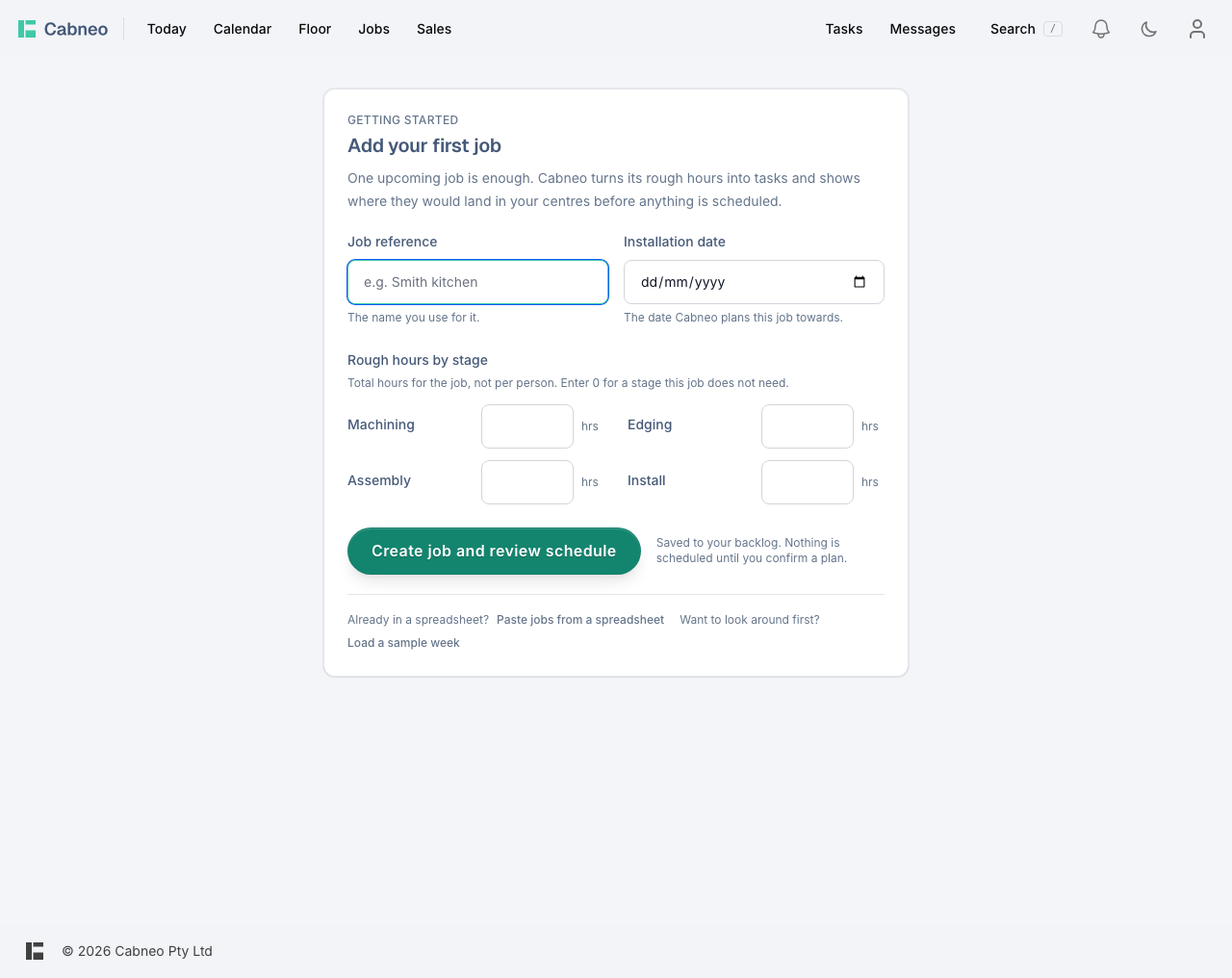
- Add one upcoming job with its reference, installation date, and rough Machining, Edging, Assembly, and Install hours.
- Review the centre mapping and normal daily hours beside the proposed dates. Correct them there if needed.
- Explicitly schedule the job, then check that the calendar, run sheets, and owner view match how your shop thinks about work.
Your dashboard has a Getting Started checklist that walks you through exactly this. It ticks itself off as you go, briefly shows the next optional actions after your first job is live on the calendar, then disappears.
Want to look around before entering your own work? Use Load a sample week (offered on the empty Jobs, Calendar, and Capacity Planning views). It fills your centres with clearly marked sample jobs so you can see the schedule working, and one click on Clear sample data removes all of it without affecting real data.
Already plan in Excel or Sheets? Choose Paste jobs from a spreadsheet beside the first-job action. Paste up to 20 job references and installation dates with any supported stage-hour columns you already have. Cabneo asks for missing estimates in the review, shows the values before import, then opens the earliest backlog job in the same focused schedule review.
What Cabneo helps set up
- The centres and workstation mapping used by the first job
- Optional crew and kiosk access
- Your first jobs, install dates, and labour totals
- Daily owner views: Today plus Floor (Run Sheet), Triage, Calendar, Capacity Planning, and List
Paste format and troubleshooting
- Required columns: a job reference and an installation or target date. Cabneo recognises the supported stage-hour columns you already have; you do not need all four in the pasted headings.
- Dates:
YYYY-MM-DDorDD/MM/YYYY - Hours: plain decimal numbers. A blank means not estimated; enter
0when a stage needs no work. - Limit: 20 jobs per paste
Unknown columns are ignored and listed in the preview. Enter missing stage estimates in the review rows and fix any marked value before importing. If Cabneo cannot recognise the job or date column, email the headings you copied and the error shown on screen for asynchronous review.
In-app setup sequence
This is the basic self-serve sequence.
Step 1: Add your first job
Where to click: Getting Started -> Add your first job.
Enter the job reference you already use, its upcoming installation date, and rough hours for Machining, Edging, Assembly, and Install. Enter 0 when the job does not need a stage; a blank means the stage has not been estimated yet. Creating the job saves it to the backlog and opens Review your first schedule. It does not schedule anything.
Step 2: Review where the work would land
Where to click: Cabneo opens Review your first schedule after you add or import the job. You can return to this focused review while the job remains unscheduled.
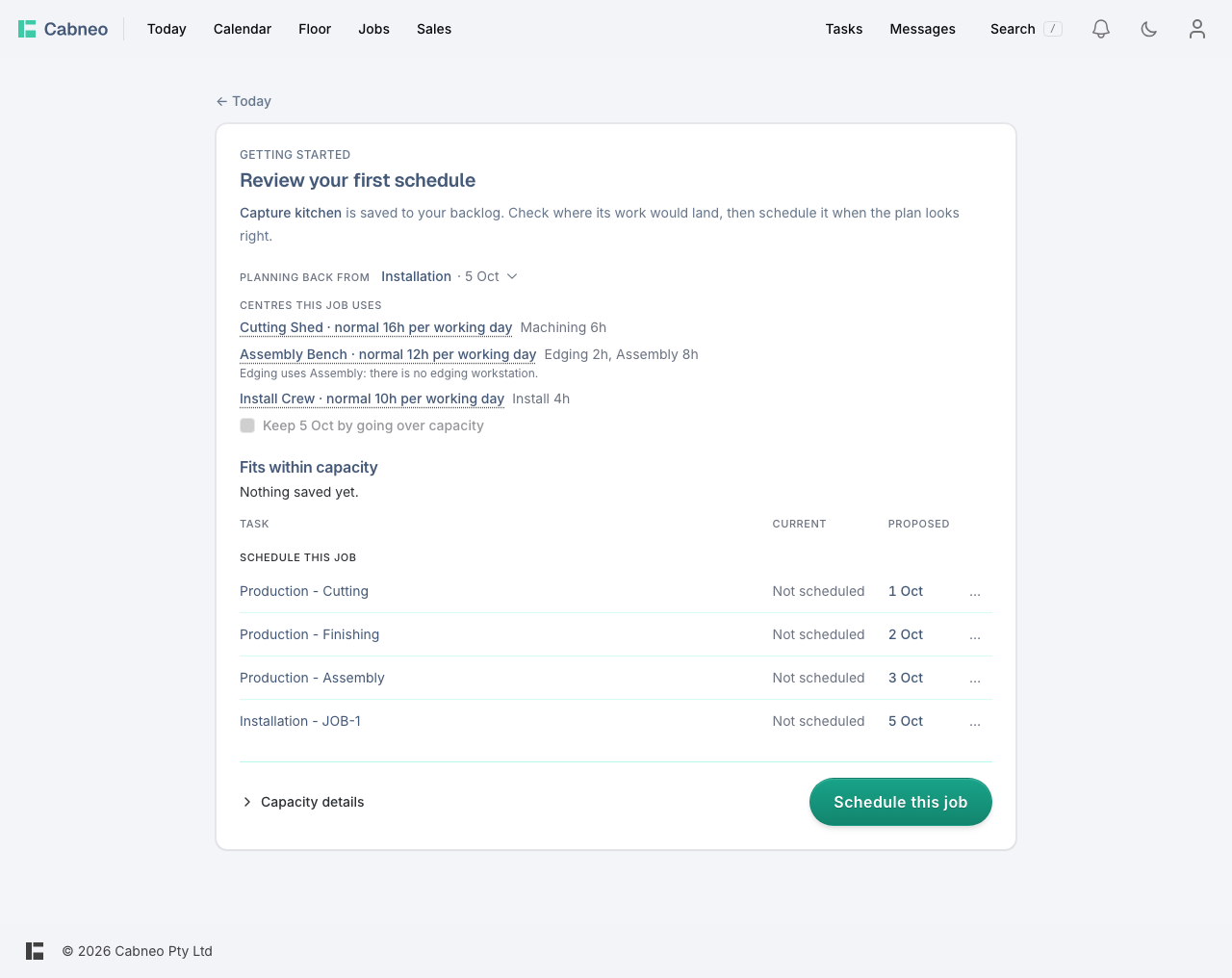
The review names the centres and normal hours per working day used by this job. New business accounts start with three editable centres and mapped workstations:
- Cutting Shed -> Cutting workstation
- Assembly Bench -> Assembly workstation
- Install Crew -> Install workstation
These are starter assumptions, not verified shop capacity. Change a centre name, its total normal daily hours, or a missing workstation mapping beside the review when needed. Cabneo refreshes the proposal; saving a setup correction never moves existing work.
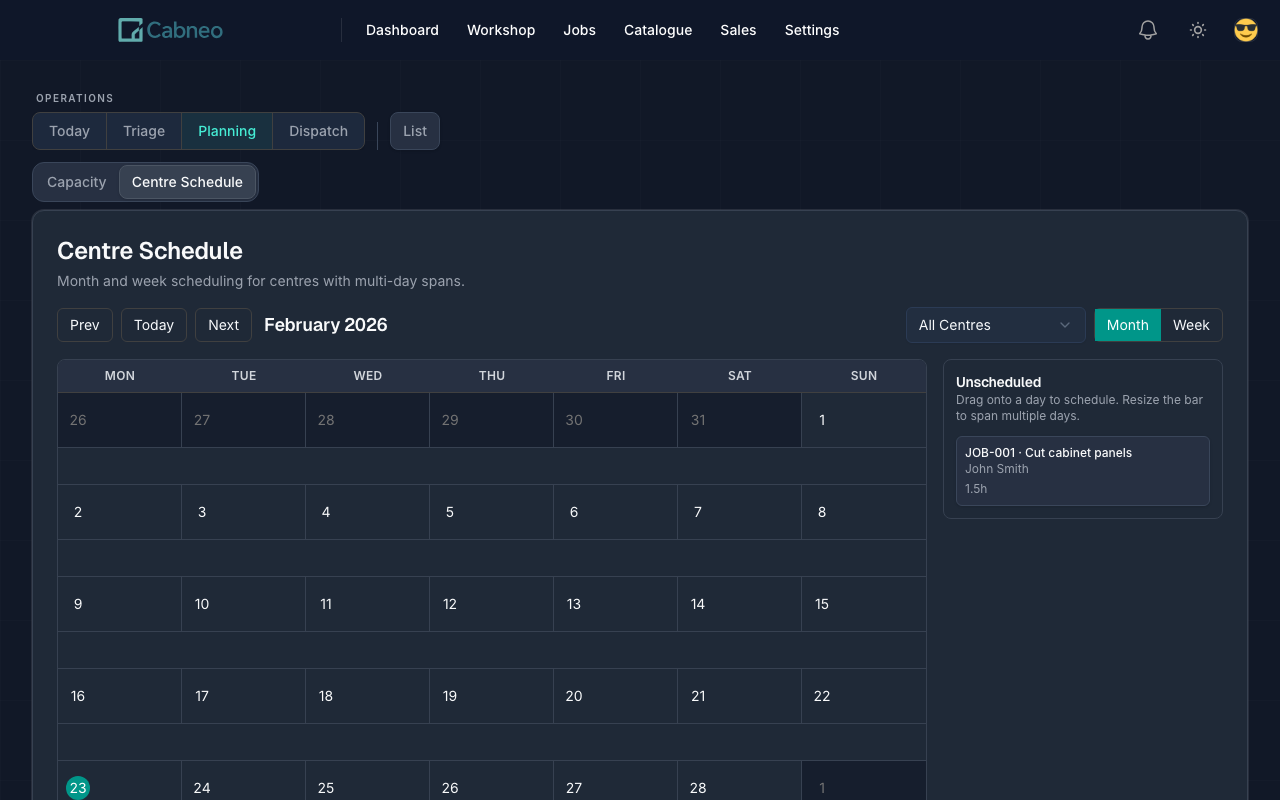
Review the proposed stage dates and capacity effects, then choose Schedule this job when the plan looks right. That is the action that places the work. If Cabneo cannot find a plan, the review gives you a way to open Centre Schedule and place work manually.
Step 3: Check daily execution views
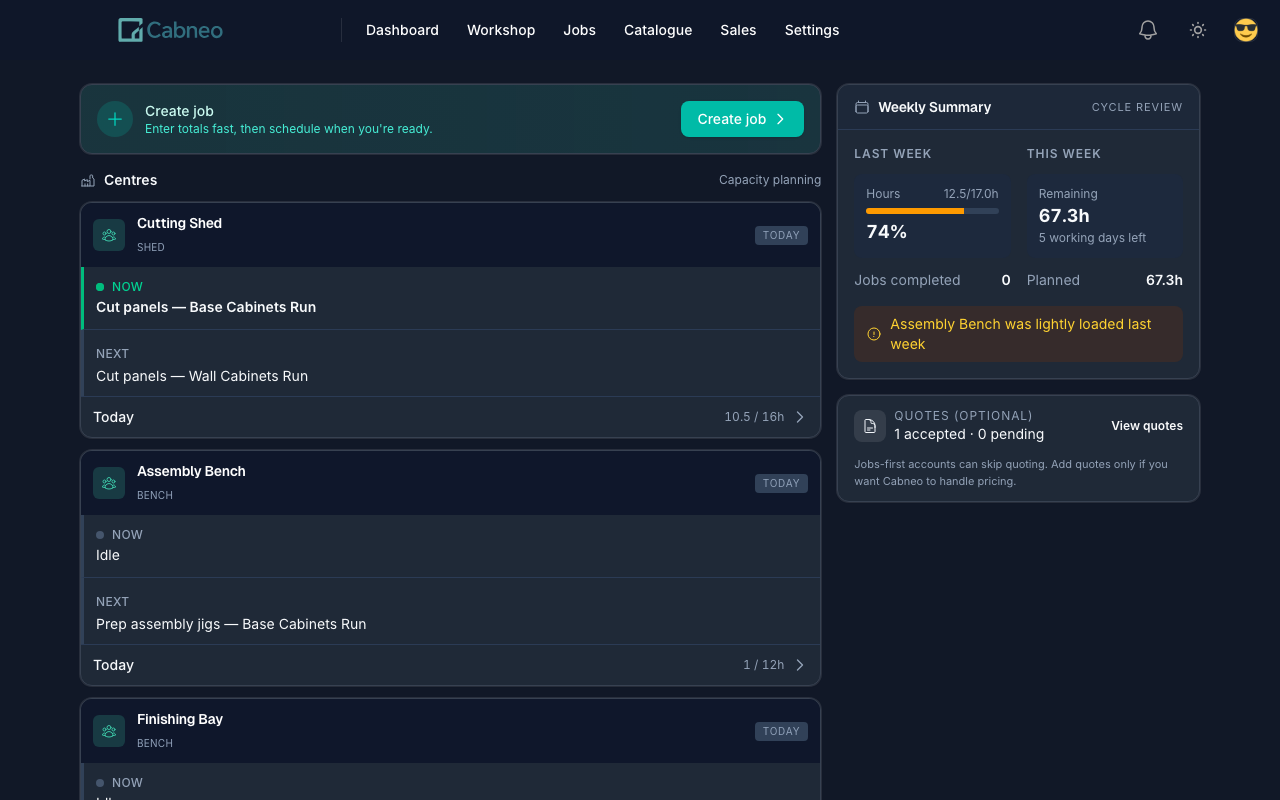
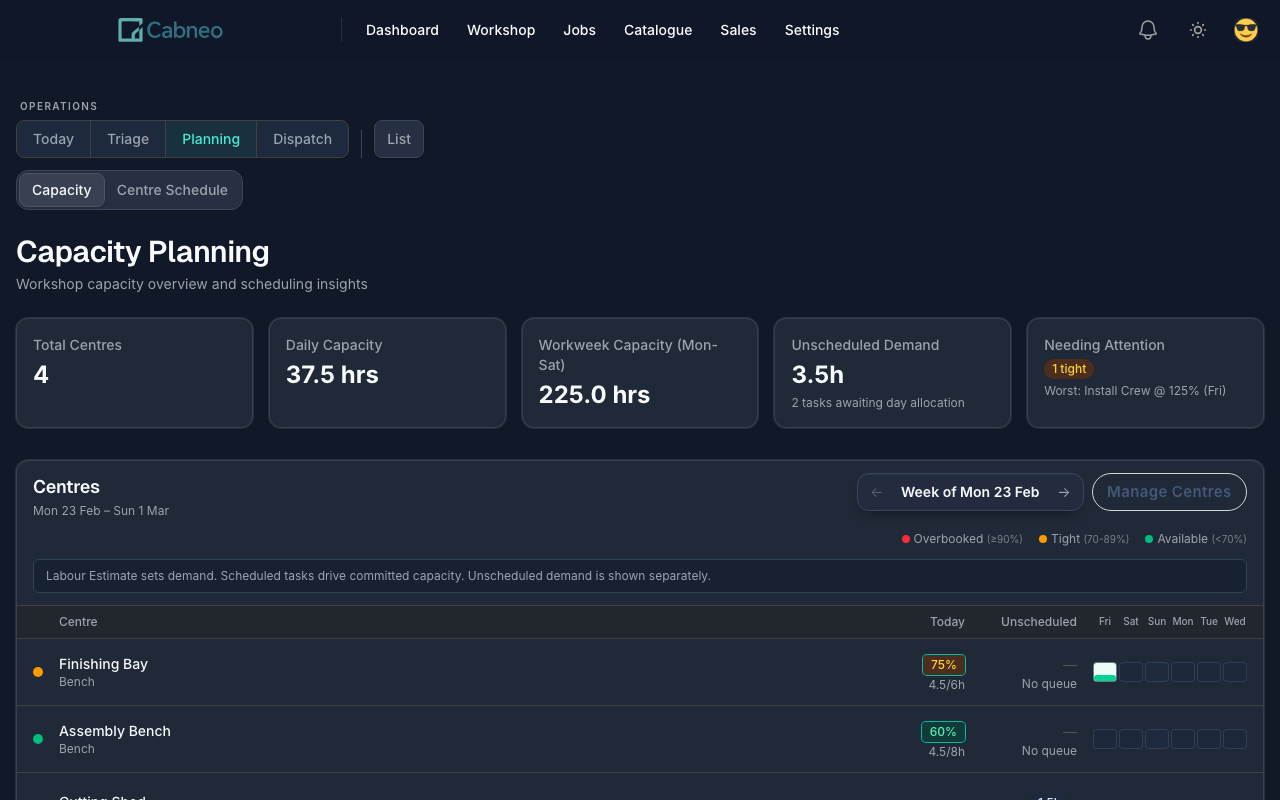
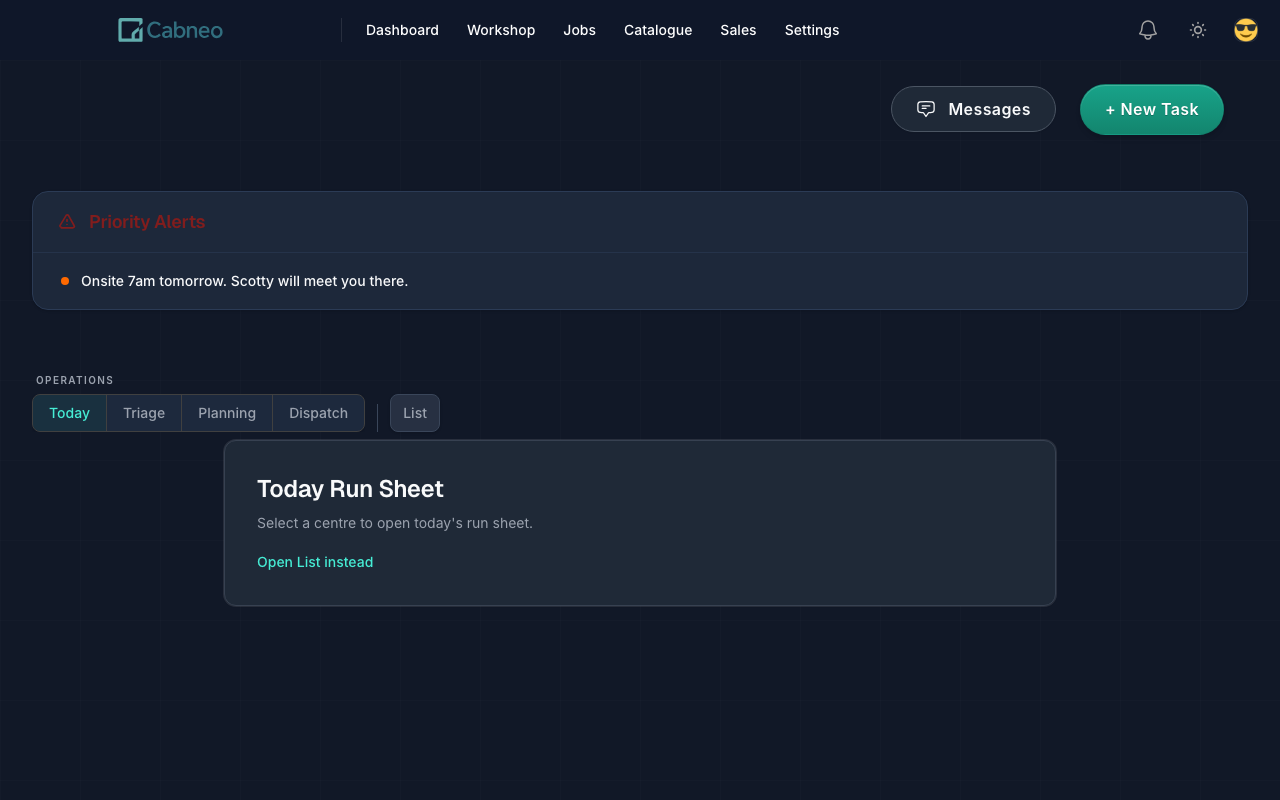
Where to click: Today, then use Floor and Calendar from the main navigation. Floor opens the Run Sheet execution view. Use the quiet Capacity link when you want the weekly planning view, Triage when work needs a date decision, and List when you need to find or update a task across dates.
Confirm the owner view is clear first, then drill into planning and execution detail.
Optional: put the kiosk on the floor
Crew and kiosk access are not required for activation. Once your first real work is scheduled, set up a shared workshop device if you want crew to start and finish assigned tasks from the floor.
Follow Set Up the Workshop Kiosk when you are ready.