Create Job + Schedule Tasks
Turn an installation date and rough labour totals into a saved job with draft task backlog, then choose how to schedule it.
For a first session, use Getting Started -> Add your first job. It asks only for a job reference, installation date, and rough Machining, Edging, Assembly, and Install hours, then opens a focused Review your first schedule page. If the work is already in Excel or Sheets, choose Paste jobs from a spreadsheet instead; its preview asks for missing stage estimates, creates the same backlog-only jobs after you confirm, and opens the earliest one in that focused review. Use Jobs -> Create Job for ongoing intake and its additional options.
"Create the job first, then decide: auto-place from Job Management or schedule manually?"
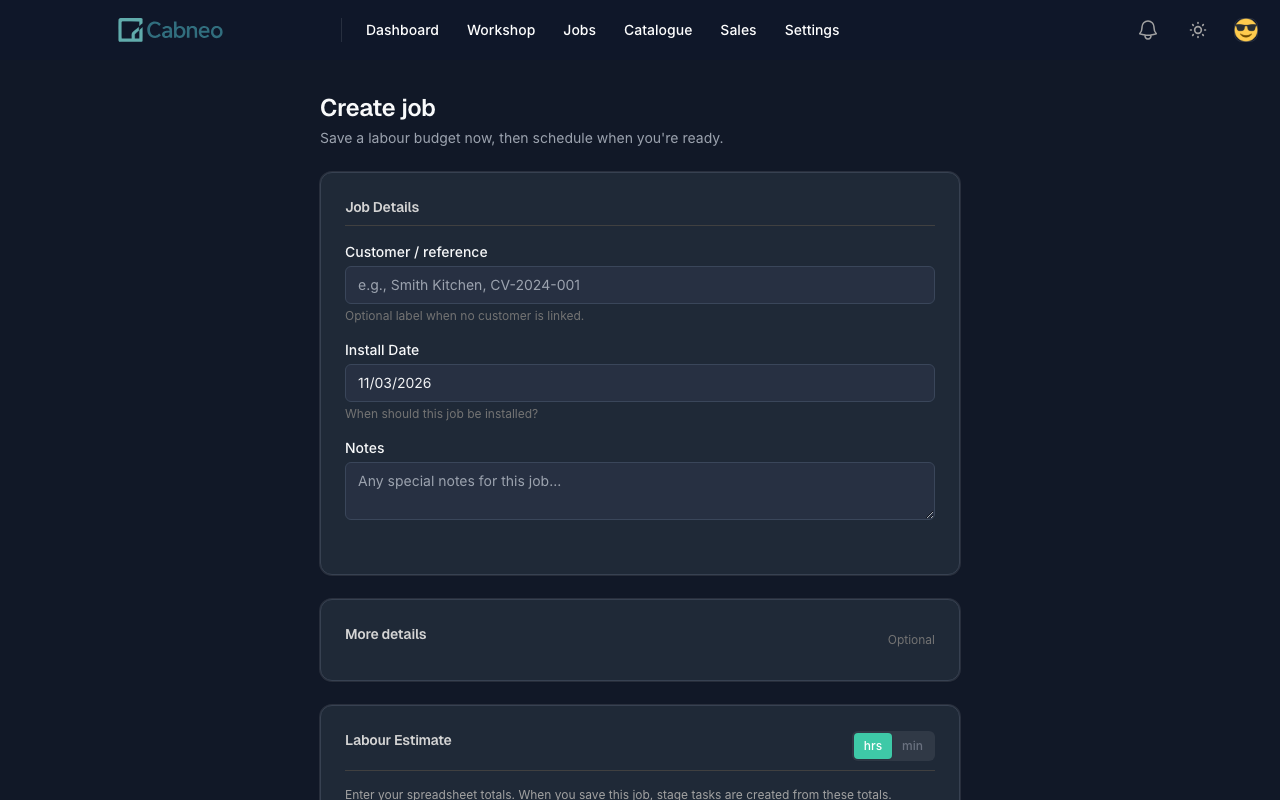
What you enter
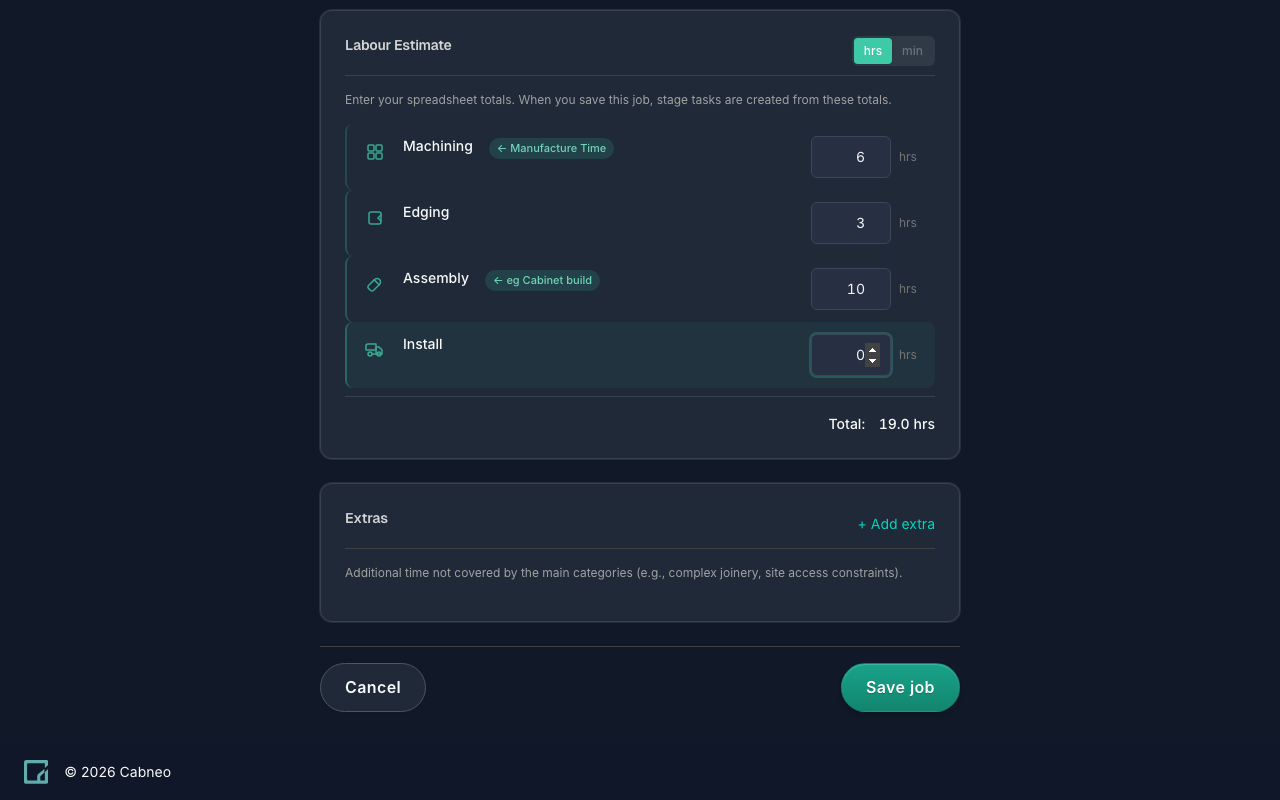
- Target/install date
- Rough labour estimates for Machining, Edging, Assembly, and Install
- Optional "Extras" minutes for one-offs
Create first, then choose a scheduling path
Create Job now always does the same first step:
- creates the job
- stores your labour estimate
- creates draft planning tasks from labour estimate buckets (unscheduled backlog tasks)
Option 1: Schedule tasks on Job Management (auto-schedule)
On Job Management, use the Schedule tasks panel to let Cabneo place the existing draft tasks onto real capacity. Auto-schedule opens the review on a job with unscheduled work; a job that is already fully scheduled has a quiet Review schedule action instead.
There is one review, and no intent to choose. Cabneo:
- plans this job's unscheduled labour-estimate stages backwards from its own commitments, and
- if that alone cannot reach the date within capacity, checks whether moving eligible work on other jobs makes room.
What you see:
- Planning back from at the top — the job's Installation date, and the control for changing it. A job has one Installation date, which an installation key date adds booking detail to (status, time, duration, location) rather than overriding; a confirmed delivery date is treated as a separate, earlier constraint.
- stages planned in labour-estimate order — Machining → Edging → Assembly → Install — with stages you did not budget skipped
- a plain-language outcome: the plan fits within capacity, fits by moving work on a stated number of other jobs, is a stated number of hours over capacity in a named centre on a named day, or found no plan inside the search rules, with the conflict named
- one Task / Current / Proposed table showing every change. This job comes first under Schedule this job; anything the plan needs elsewhere is grouped beneath it under Required moves · N other jobs.
- a row popover on each change carrying the stage, centre, hours, and the reason for that particular move
- Capacity details, collapsed, holding the arithmetic: each affected centre and day, before and after, out of that centre's configured hours
- Nothing saved yet. — nothing is written until you click Apply plan
What Required moves will and won't do
- Other jobs only ever move later. Cabneo never pulls another job's work forward and never starts it early.
- No proposed date pushes a job past its own recorded installation or delivery date. A job with no recorded date, or with stage work Cabneo cannot see, is ineligible to move at all — its spare time cannot be trusted, so it is not spent. This bounds the dates Cabneo proposes; it is not a claim that the work gets done by them.
- Required moves are not optional extras. The placements depend on one another, so Apply plan writes the whole reviewed plan, atomically, as one recorded schedule revision — or nothing.
- Tasks that are in progress, completed, or carrying a schedule lock are never moved.
If one particular date is the one you cannot touch, open that row and choose Try keeping this date. Cabneo searches again with it held. It is a question rather than a promise: when no alternative is found, the original proposal stays applicable and the failed requirement is quietly discarded, so there is nothing to undo. It writes no lock, and Cancel discards it. For a durable "leave this date alone", use Lock schedule in the task's own menu.
When the date has to hold anyway
Tick Keep <date> by going over capacity. Cabneo previews the same deadline without moving other jobs and states the shortage — the hours, the centre, and the day — and the action button becomes Schedule over capacity. Cabneo does not change your configured capacity or assume those hours are staffed: those days stay visibly Overbooked on Capacity Planning and the Run Sheet until you change the work or the capacity. Unticking searches within capacity again. The checkbox is disabled when overbooking cannot help, because overlapping work cannot create a working day that does not exist.
If no plan is found
Cabneo names the conflict rather than declaring the date impossible, and — when the one-job planner has established a later feasible date — offers it beside a quiet Change date. The suggestion never edits a commitment by itself. Open Centre Schedule, focused on this job, is the alternative if you would rather place the work yourself.
While you were reading
If the schedule changed between the review and Apply plan, Cabneo writes nothing and offers Review updated plan instead of saving different dates under your old decision. Re-applying the same reviewed plan when its dates are already in place acknowledges zero writes rather than duplicating them.
The review is gated on planner permissions (admin or workshop foreman), because it can move other jobs' dates.
Option 2: Manual scheduling (Centre Schedule / Triage)
After Create Job save:
- On Job Management, review draft tasks and confirm workstation mapping (grouped by centre).
- Click the Schedule manually in Centre Schedule link — Centre Schedule opens with the sidebar pre-filtered to that job's unscheduled tasks.
- Drag tasks onto calendar days to build the schedule visually.
- Click the day itself to open Run Sheet for centre/day detail, or click a scheduled task for quick crew assignment. Use Dispatch when you want more explicit crew/day timing.
Tip: A workstation is the specific station a task is assigned to. Workstation mapping determines which centre the task appears under. See the Glossary.
How labour estimates map to planning
- Labour estimates become the job's planning budget.
- Capacity uses scheduled tasks with estimated time as committed load.
- Unscheduled demand is shown separately in Capacity Planning until work is placed on a day.
- In labour-estimate mode, only stages you budget contribute to capacity and run sheet totals.
- "Extras" are stored for explainability, but are not automatically placed on a centre/day by default.
To trace where hours landed, open Capacity Planning for a centre/day, then open the Centre Day Run Sheet to see tasks grouped by job with hour subtotals.
Related views
- Create Job + Schedule Tasks: You need to create a job, then choose auto-schedule or manual scheduling.
- Centre Schedule: You want to place or move work onto specific days manually.
- Dispatch: You want to assign or verify crew work for a specific planned day.
- Capacity Planning: You want to check overload or underuse across the week.
- Run Sheet: You need the actionable execution list for a centre/day.
- Triage: You need to clean up unscheduled or slipped work.