Centre Schedule
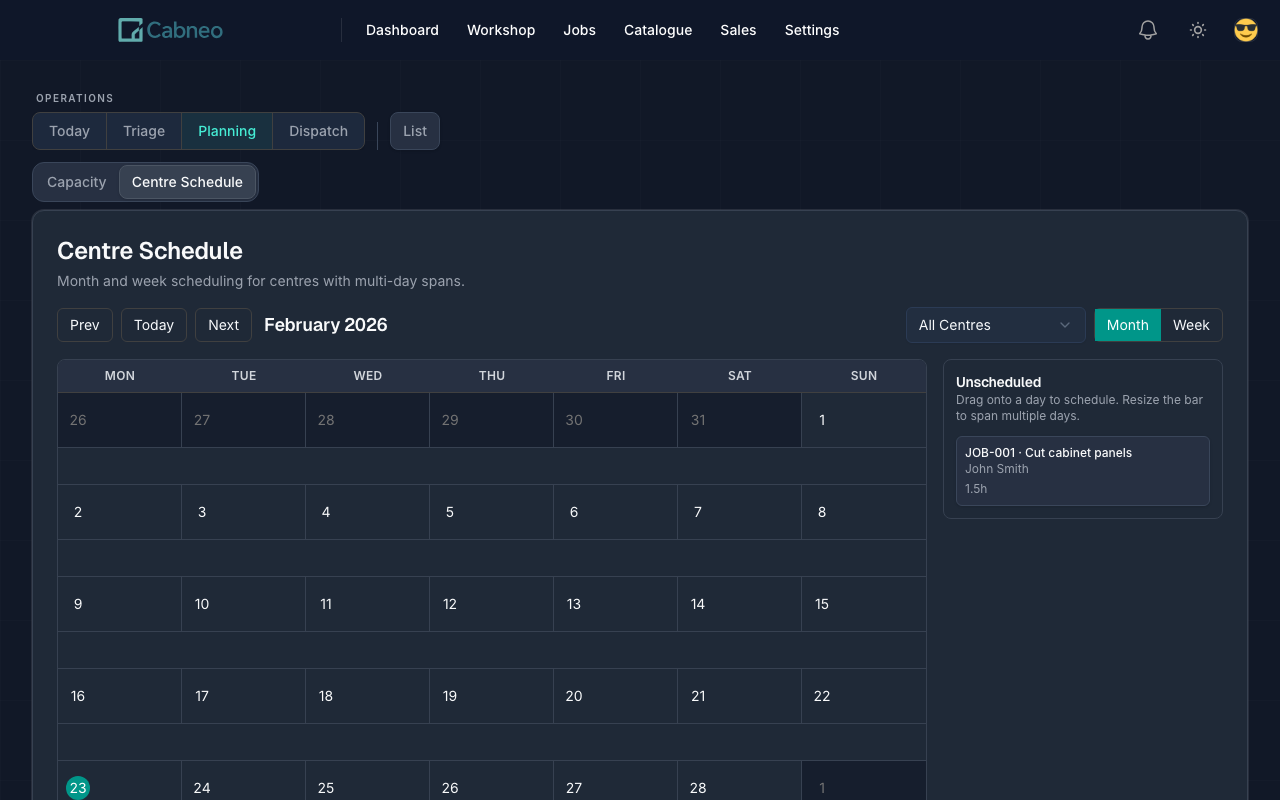
Centre Schedule is a visual calendar that shows what work is planned across your centres (sheds, machines, crews) and when.
"What's scheduled where, and when — at a glance?"
Where to click: Calendar.
Use the separate List button when you need to search or update tasks across dates instead of placing work on the calendar.
How it works
Centre Schedule defaults to an All Centres bird's-eye view and can be filtered to a single centre. It supports both month and week views so you can plan at the horizon that suits you.
Machines in the toolbar lists the machines behind the centres on screen, names any that are down, and lets you mark one down without leaving the calendar.
In month view, Centre Schedule defaults to a rolling 5-week window starting from Monday of the current week. This puts today and the next four weeks front and centre instead of showing past weeks from the start of the calendar month. Press Prev or Next to switch to standard calendar-month browsing, or press Today to return to the rolling view.
Tasks appear on the calendar as event bars. Each bar shows the job reference, task name, and hours per day. In single-centre view, Cabneo uses consistent semantic colours to help you scan workshop tasks, quote work, and general tasks more quickly.
Empty space in a visible day column is also actionable: click the day itself to open Run Sheet for that date. If you are filtered to one centre, Cabneo keeps that centre in the Run Sheet view. In All Centres, Cabneo opens the all-centres Run Sheet for that day. Scheduled bars still keep their own popovers and drag/resize behavior.
Centres vs workstations: Centres are the planning buckets you filter by. Tasks show up under a centre based on their workstation assignment (so tasks need a workstation to appear here). See the Glossary.
Scheduling with drag-and-drop
Centre Schedule is the primary surface for building a manual schedule:
- Drag to schedule — unscheduled tasks sit in a sidebar. Drag one onto a calendar day to schedule it. The task lands on the day where you drop it.
- Drag to move — drag an existing event bar to a different date. Multi-day spans are preserved.
- Drag to resize — drag the trailing edge of an event bar to extend or shorten a multi-day span.
You can drop onto a day even where another task bar is already shown.
If a drop cannot be saved, Cabneo keeps the task on its saved dates and shows the reason in a dismissible message at the bottom of the screen. For example, a task with positive hours cannot be placed on a span with no working day. The message stays visible when you scroll the calendar.
Overload-aware placement
Cabneo checks the dates, hours and workstation you are saving against the hours available in the destination centre on each affected date. Moves, resizes and workstation changes use the same check.
A small status at the bottom of the screen reads Checking capacity… while Cabneo checks the placement, and Saving schedule… when you confirm it. After a successful save it reads Updating calendar…, then Schedule saved. A warning or refusal clears the activity message without a saved tick. Reduced motion keeps the text and a static icon.
- Safe placements save immediately. Added work that takes a day to 90% or more of its available hours prompts a warning, including when the day is already busy.
- The warning shows the busiest affected date and its planned / available hours. An open day with no available hours is shown as no hours, rather than a percentage.
- Cancel leaves the task unchanged. Confirming places the work exactly as proposed, including on an open day with no hours when you deliberately choose to overbook.
- For a single-day placement, Cabneo may offer a safer date. Choosing it checks that new placement again before saving.
- A span with positive work but no working day cannot be saved. Choose dates when the workshop is open. Removing a task from the schedule remains available.
The task drawer uses the same warning and keeps your typed values while you decide. Correcting only an estimate saves immediately; if the new estimate adds pressure to a scheduled day, the drawer shows the consequence after saving. A combined estimate and placement change is checked together before it saves.
Tasks with an adopted schedule keep their existing allocation review for date or workstation changes. Completed history stays unchanged.
Event popover and crew assignment
Click any event bar to open a popover showing:
- task name and job reference
- scheduled dates and estimated hours
- task status and crew assignments
From the popover you can:
- Assign crew — pick a crew member for day-allocation level assignment (no time blocks needed).
- Remove from schedule — return the task to the unscheduled sidebar.
- Open dispatch — from a day overflow popover, jump into Dispatch for that same date.
Crew filter: centre-scheduled work only
The crew selector is a read-only lens on the calendar. Choose All crew to see every scheduled bar, or choose one crew member to see that person's work that is already scheduled to an active centre.
This is not their full workload. If a task is assigned to Ben but has no scheduled day, no workstation, or a workstation outside an active centre, it will not appear on the calendar.
Cabneo calls that out with a link such as 2 assigned tasks not shown (no centre), so a supervisor can open the worker's workload and fix the mapping or schedule.
Use this lens when you want a visual calendar view of one person's centre-scheduled work. Use Worker Workload when you need their full plate across today, this week, and upcoming weeks.
Searching and filtering
The search bar at the top of Centre Schedule supports three modes you can switch between:
- Unscheduled (default) — filters the sidebar to show only unscheduled tasks matching your search.
- Calendar — highlights matching scheduled events on the calendar and dims others, so you can spot specific work at a glance without losing the full picture.
- Both — filters the sidebar and highlights the calendar in the same pass.
Job focus mode
When you click a "Schedule manually in Centre Schedule" link from Job Management, Centre Schedule opens with that job already in focus:
- The unscheduled sidebar shows only tasks from that job.
- Scheduled events for that job are visually highlighted.
- A chip above the sidebar shows the job reference. Click Clear to see all unscheduled tasks again.
Where it fits in the manual scheduling flow
When you create a job in Create Job, Cabneo creates draft planning tasks from your labour estimate buckets (unscheduled backlog tasks). After you confirm workstation mapping in Job Management, those tasks appear in the Centre Schedule sidebar. Typical flow:
- Job Management — review draft tasks and confirm workstation mapping (grouped by centre).
- Centre Schedule — drag unscheduled tasks from the sidebar onto calendar days.
- Run Sheet or event popover — click the day to open Run Sheet for centre/day detail, or click a scheduled task for quick crew assignment. Use Dispatch when you want more explicit crew/day timing.
- Capacity Planning — verify the schedule at weekly level, then drill into Run Sheet detail as needed.
This gives you full control over when work lands, while keeping the schedule visible and honest.
Related views
- Create Job + Schedule Tasks: You need jobs and draft tasks ready for manual scheduling.
- Centre Schedule: You want to place, move, or resize work on the calendar.
- List: You want to search/filter tasks and make quick updates across dates.
- Capacity Planning: You want to verify load after scheduling decisions.
- Run Sheet: You need a centre/day execution list and sequence.
- Triage: You need to re-date unscheduled or slipped work.