Capacity Planning & Floor
Capacity Planning helps you answer a practical question:
"Which centres are overloaded or underused this week?"
Where to click: start from Calendar or Floor, then use the quiet Capacity link.
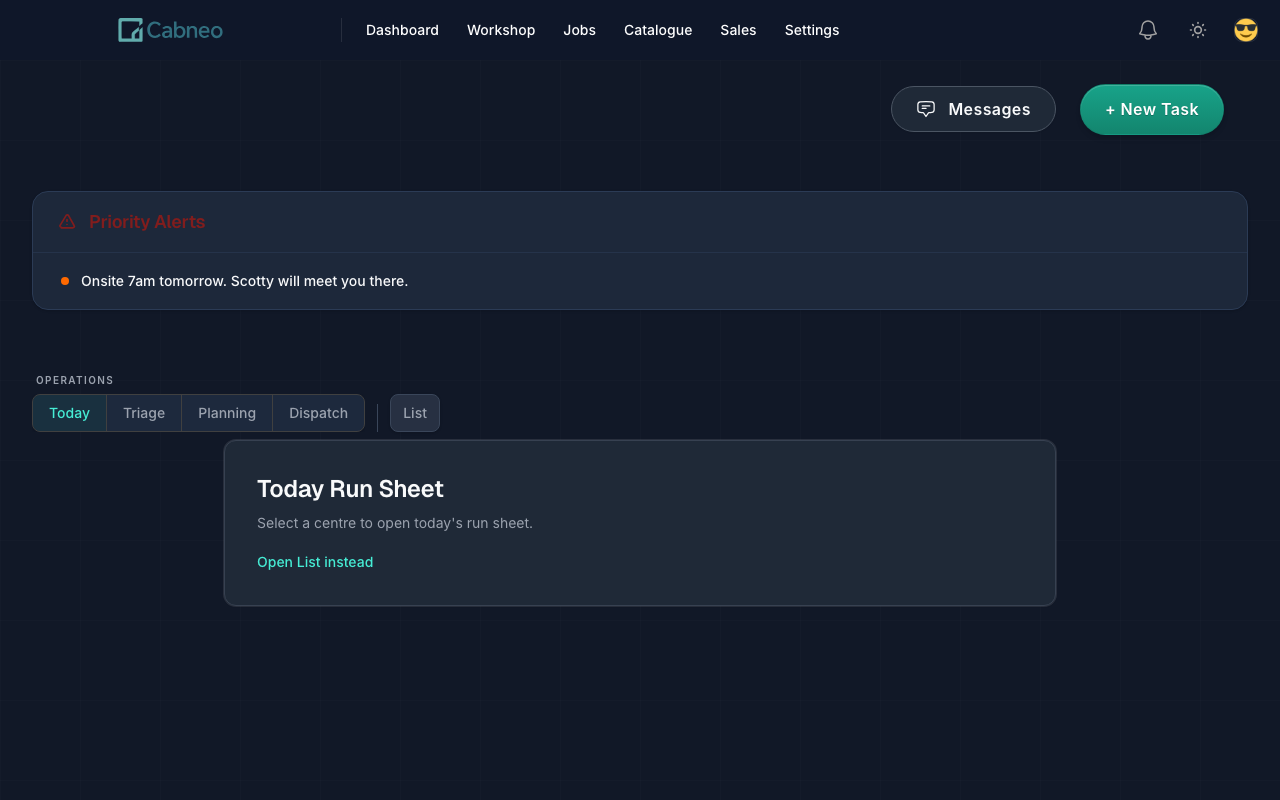
Cabneo keeps the operational flow simple: Calendar for visual planning, Floor for centre/day execution, Triage for scheduling cleanup, Dispatch as a secondary crew/day surface, and List when you want to find or update tasks across dates. The page underneath Floor remains the Run Sheet.
Important distinction: both Capacity Planning and Centre Schedule day drill-downs open Run Sheet for explainable centre/day detail. Dispatch remains available when you want more explicit crew/day timing.
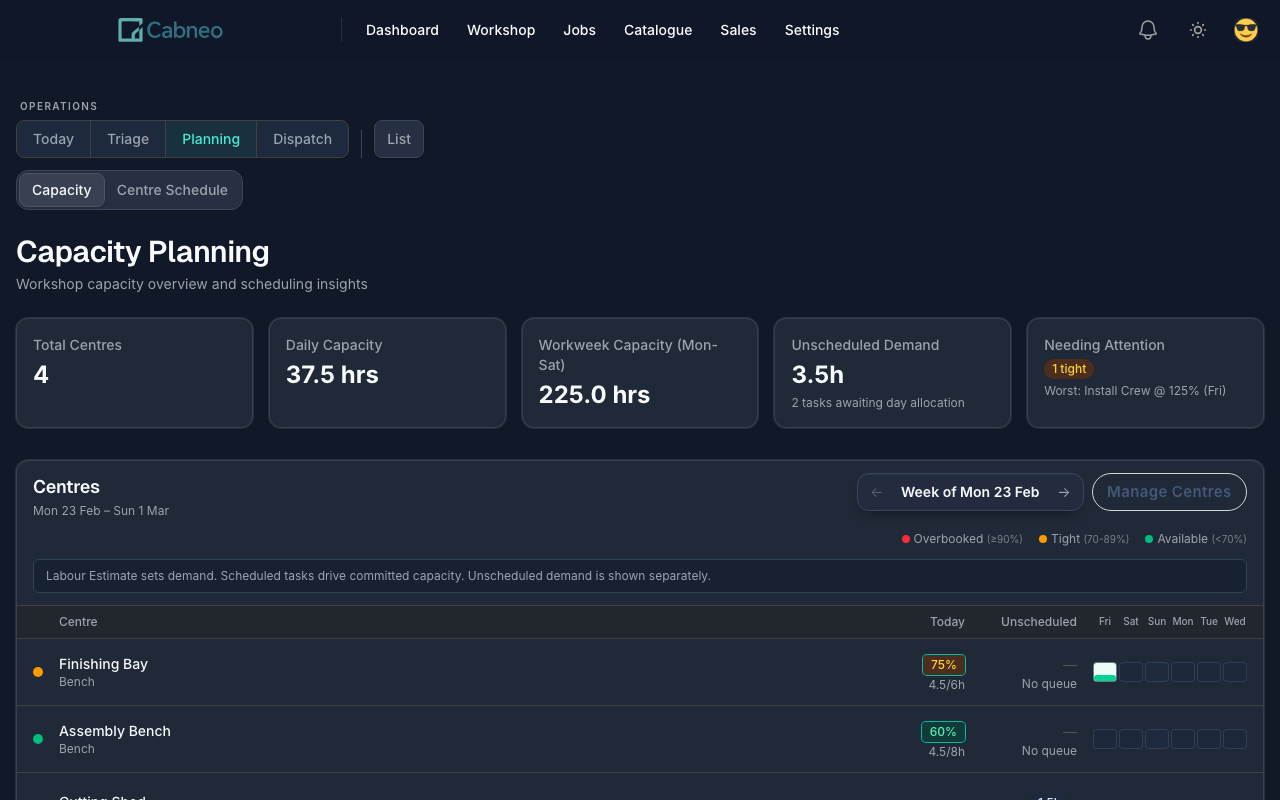
From Job Management, the Schedule tasks review is where draft Labour Estimate tasks get placed onto this capacity. It plans the job backwards from its Installation date, then — if that alone cannot reach the date — checks whether moving eligible work on other jobs makes room. The load you see here is what it plans against, and Capacity details in the review shows the same arithmetic per centre and day: hours before, hours after, out of that centre's configured hours.
Other jobs only ever move later, and no proposed date pushes a job past its own recorded installation or delivery date — so a required move never quietly plans over a commitment that already exists here.
If you deliberately tick Keep <date> by going over capacity and then Schedule over capacity, the affected centre-days are recorded above configured capacity and stay visibly Overbooked here and on the Run Sheet until you change the work or the capacity. Cabneo never raises a centre's configured capacity to make a plan look feasible. See Create and schedule a job.
When a machine is down or someone is away
If a machine breaks down, record the downtime and review a revised plan for the affected work. This works with planning-only use: no crew logins, kiosk or time tracking are required.
The screenshots below use a fictional workshop. Its CNC Router is down on 15 September 2026, with cutting still unfinished. Other machines in the same centre remain available.
1. Record the downtime
Open the machine's availability control in Calendar, Capacity Planning or the Run Sheet. In Calendar, open Machines first. Select the first and last unavailable days, then choose Mark as down. Dates include both days and default to today.
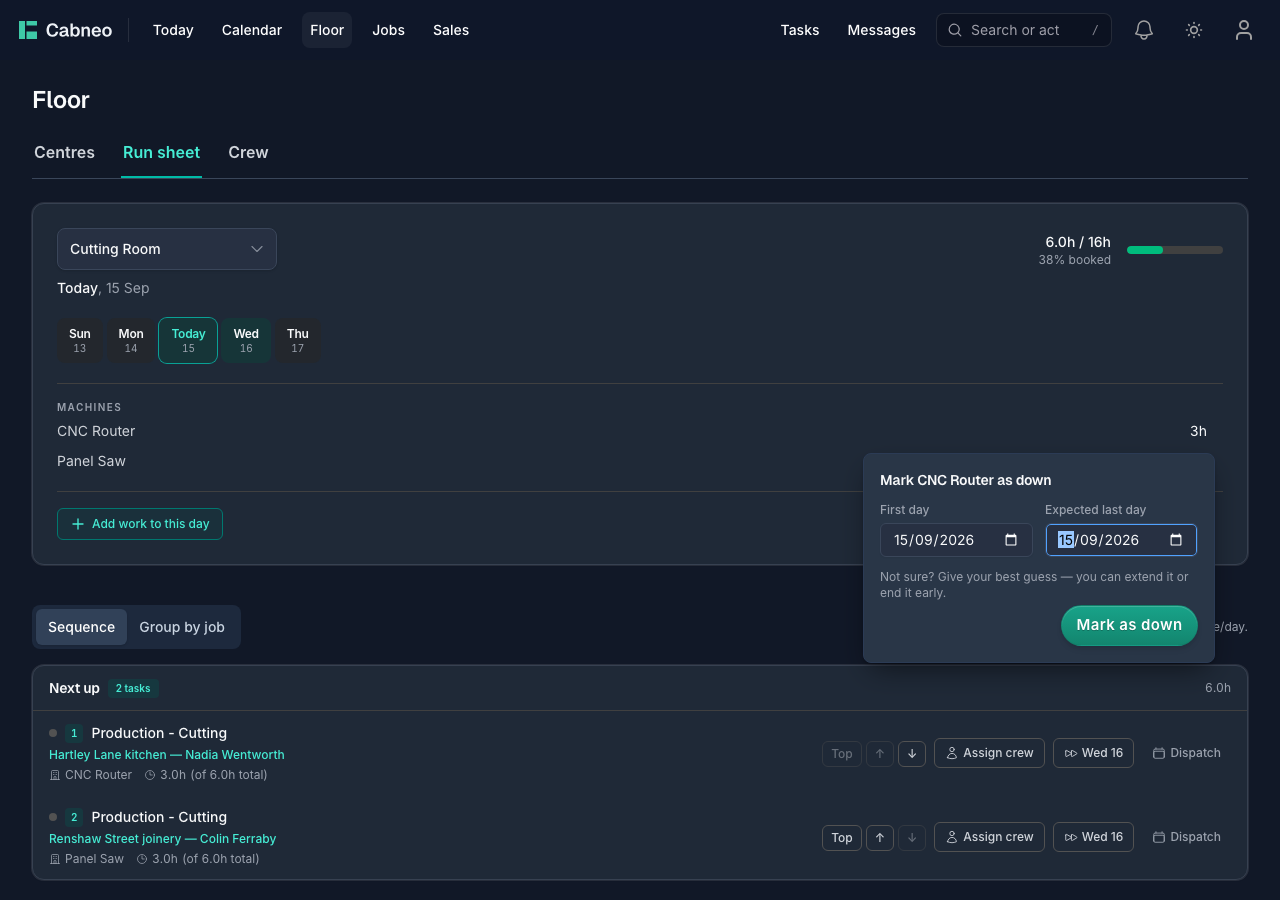
Saving records the downtime; it does not move tasks. A broken machine is separate from centre hours: taking the CNC out does not close a panel saw in the same centre or subtract an assumed eight hours of labour.
2. Check the hours to plan
Follow Find new dates from the disruption on Today or Floor. Recovery opens a preview for the selected outage or absence while checking the other bookings and task dependencies that a move could affect. Work blocked today appears first.
For unfinished work, check the Planning hours shown beside each affected task. When progress is unknown, the full estimate is used as a planning assumption; Cabneo does not infer completed work from elapsed days or timers. Select the hours to adjust that number if some work has already been done. Update preview recalculates proposed dates without saving the schedule.
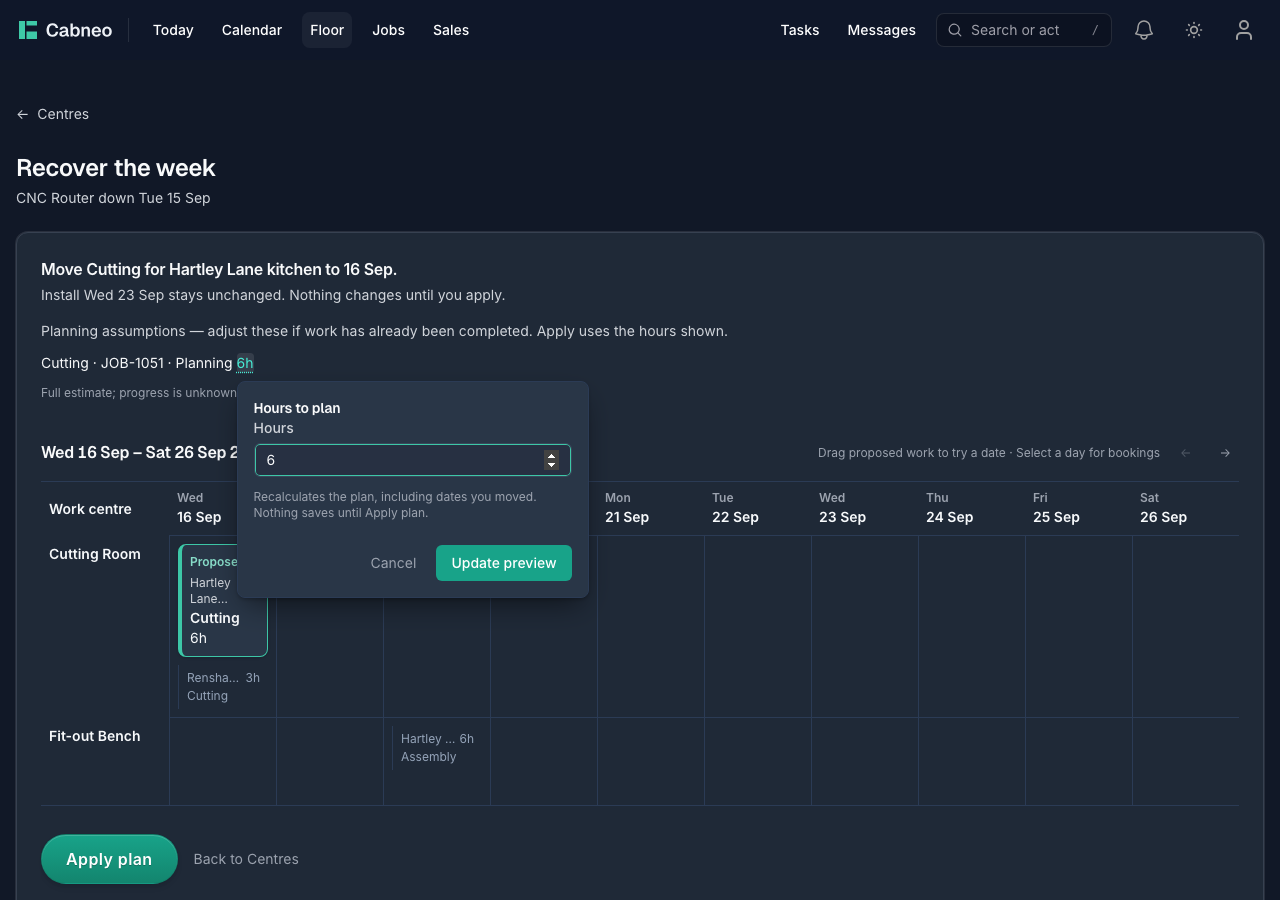
If nothing remains, use the task's existing completion or cancellation action.
3. Review the proposed changes
You can prepare recovery today, even when the outage only lasts today. New allocations start on the next eligible working day, taking account of resource availability, centre hours and dependencies. Today's historical planned load stays on record; it is not a record of work performed.
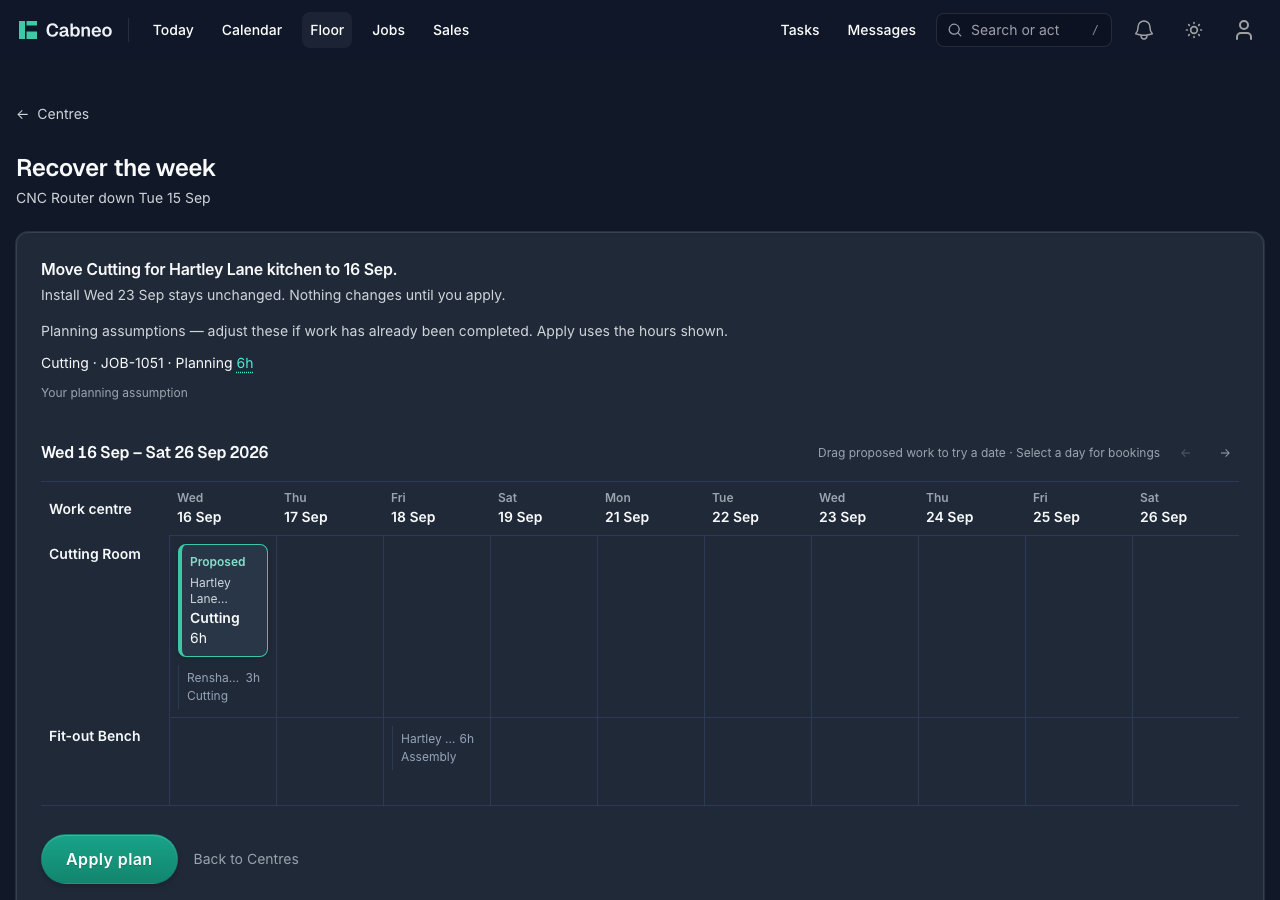
The review shows proposed work in a dated grid alongside other bookings in the affected centres. Select a day to inspect its bookings, or drag proposed work to try another date. In this example, six hours of cutting move to 16 September; the existing assembly booking stays on 18 September, and the recorded install date stays unchanged. The grid can scroll to later dates without changing the proposal.
Cabneo checks recorded installation and confirmed delivery commitments. It does not move those dates to make a proposal fit, and a plan starting tomorrow cannot rescue an install due today. Locked, on-hold and other protected work may prevent a complete proposal.
If information is missing, the review names what is needed and provides a correction link where available. Other jobs that cannot be moved to make room are grouped under a disclosure. If no complete proposal is available, the review explains the constraint or search limit instead of offering a partial plan as a complete recovery.
4. Apply the plan
Choose Apply plan when you are happy with the proposal. Until then, the schedule stays unchanged. If relevant facts change during review, Cabneo requires a refreshed review instead of applying a stale proposal.
After applying, check the revised days in Calendar or the Run Sheet. Recovered tasks can still be moved manually through their Remaining work dates; frozen historical planned load stays on record.
When someone is away, or returns early
If you use crew records, open the person's availability control on Floor → Crew. Record the dates and the centre hours lost each working day. Use zero when cover means centre hours are unchanged; an unknown effect needs clarification before a complete recovery assessment. Crew setup is optional for machine downtime recovery.
Edit the availability dates or use the return action when the machine or person is back earlier than expected. Correcting availability does not automatically undo a plan you already applied.
How capacity is calculated
Capacity includes tasks that have:
- a scheduled day
- an estimated duration
Completed and cancelled tasks do not count toward capacity.
Work that runs over several days spreads its hours across your working days only. A 16-hour job stage running Friday to Monday in a Mon–Fri shop counts as 8 hours on Friday and 8 hours on Monday — your closed days never absorb any of it.
Unscheduled work appears as Unscheduled Demand, not in day bars/heatmap. If tasks are missing workstation/centre mapping, that demand is shown as unmapped so setup gaps are visible.
Capacity is a centre-level number. Crew filters and Worker Workload show absolute scheduled hours only; they do not divide centre capacity into per-person percentages.
A centre's configured hours are the setting on its page. The hours shown on Capacity Planning are the dated hours: the configured day less any hours you have confirmed are lost that day. Weekly capacity is the sum of that week's days, so a week with someone away is a smaller week rather than the same number as every other week.
Run Sheets Explain the Numbers
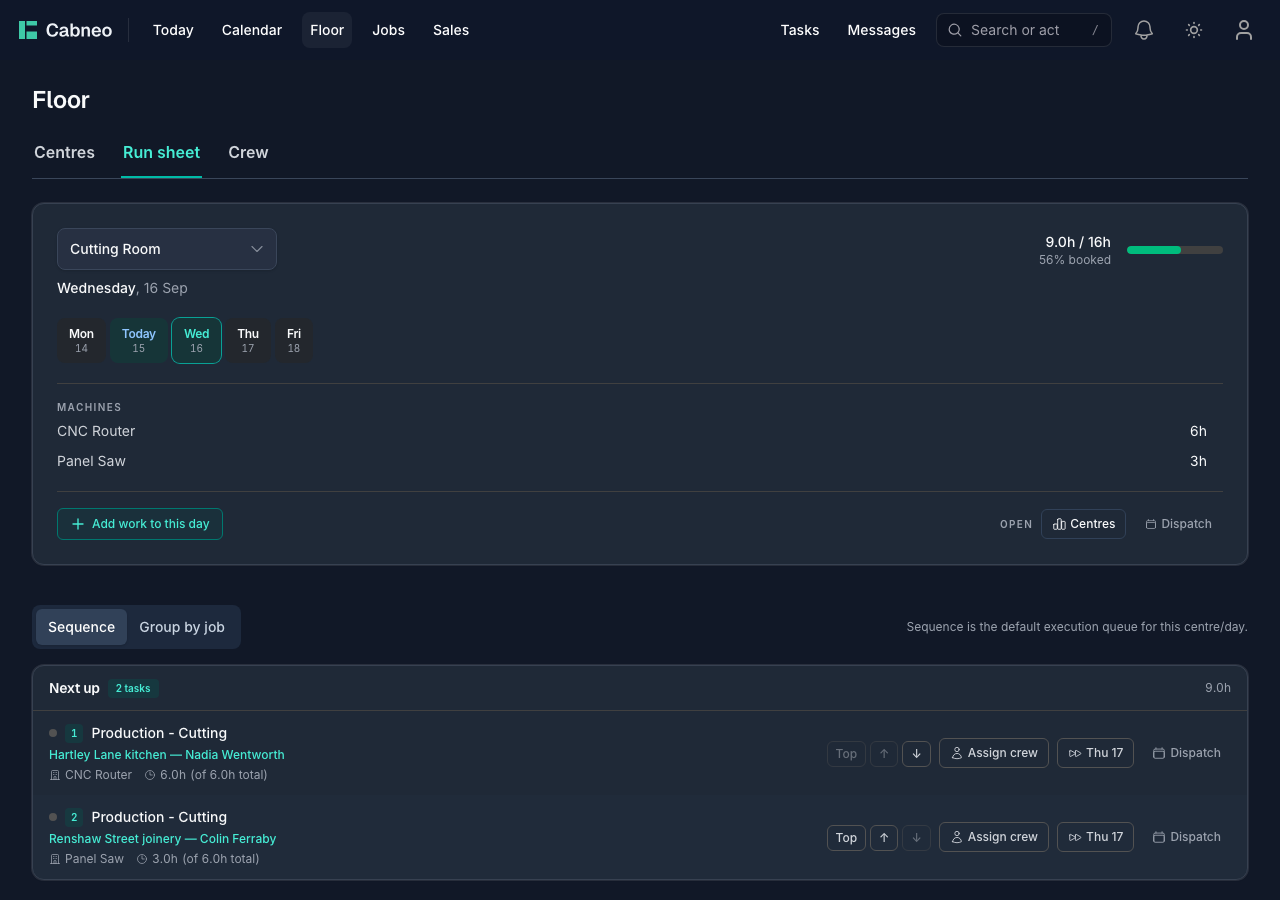
When you open a specific centre/day, Run Sheet shows:
- tasks planned for that centre/day
- grouped by job
- with per-job hour subtotals
Run sheet rows remain scheduled-only execution truth. You may see an unscheduled-demand hint in the header for context, but unscheduled tasks are not mixed into the run-sheet body.
The header shows scheduled / capacity (for example 12.5h / 16h). The capacity figure is the centre's daily total — for example two crew members each working 8 productive hours gives 16h/day. Temporary reductions are shown in context; normal centre hours are configured in Settings → Labour Centres.
Triage keeps the schedule honest
Triage is the inbox for work that needs a date decision, typically:
- unscheduled work (no date yet)
- slipped work (scheduled in the past, still not done)
Use Triage to re-date work quickly so Capacity Planning and Run Sheets remain reliable.
When an install date changes
When you use Change install date, Cabneo first shows an advisory calendar so you can compare likely workshop impact by date. Preview then confirms the exact move before anything changes.
Cabneo shifts eligible tasks by the same number of working days rather than rebuilding the whole schedule from scratch. Capacity updates automatically — if the new dates push a centre over capacity, you'll see it reflected immediately in the day bars and status labels. Use the preview to check overload and affected centres before confirming.
Crew queues
On Floor → Crew, Open work shows each active crew member's existing assignments, including earlier assignments. Queued estimate adds the full task estimates for each person's queue. A task assigned to two people contributes its full estimate to both queues. These hours are not today's bookings or confirmed remaining hours.
The As of … date states when the queue was assessed. Queued · no task in progress means open work is assigned without a recorded active task; No open work queued means the person's queue is empty. The separate Run Sheet and Worker Workload dated hours views retain their scheduled-hours definitions.
The critical-open-work band checks installation-prep tasks. No installation-prep tasks flagged applies to that check, not every installation risk. When only older prep work remains, No imminent installation-prep tasks flagged leaves that work available in its needs-review group.
See Crew Visibility for the roster and workload views.
Related views
- Create Job + Schedule Tasks: You want to create work from labour totals, then auto-schedule or manually schedule it.
- List: You want to find/filter tasks across dates and make quick updates.
- Centre Schedule: You want to place or move work on specific days manually.
- Dispatch: You want crew/day assignment for a planned date.
- Capacity Planning: You want to see overload or underuse by centre and week.
- Floor (Run Sheet): You need the actionable execution list for a specific centre/day.
- Triage: You need to clean up unscheduled or slipped work.