Set Up the Workshop Kiosk
Kiosk setup is optional. You can load and schedule your first week before doing this. Set it up when you are ready for crew to start and finish assigned work from one shared tablet or computer on the workshop floor.
Before you start
Have these ready:
- an admin signed in with their personal account
- the shared workshop tablet or computer in front of you
- the names of the crew who will use the kiosk
- at least one scheduled, assigned task if you want to test the complete workflow
If your centres and first live work are not ready yet, start with Basic Setup.
Add your workshop crew
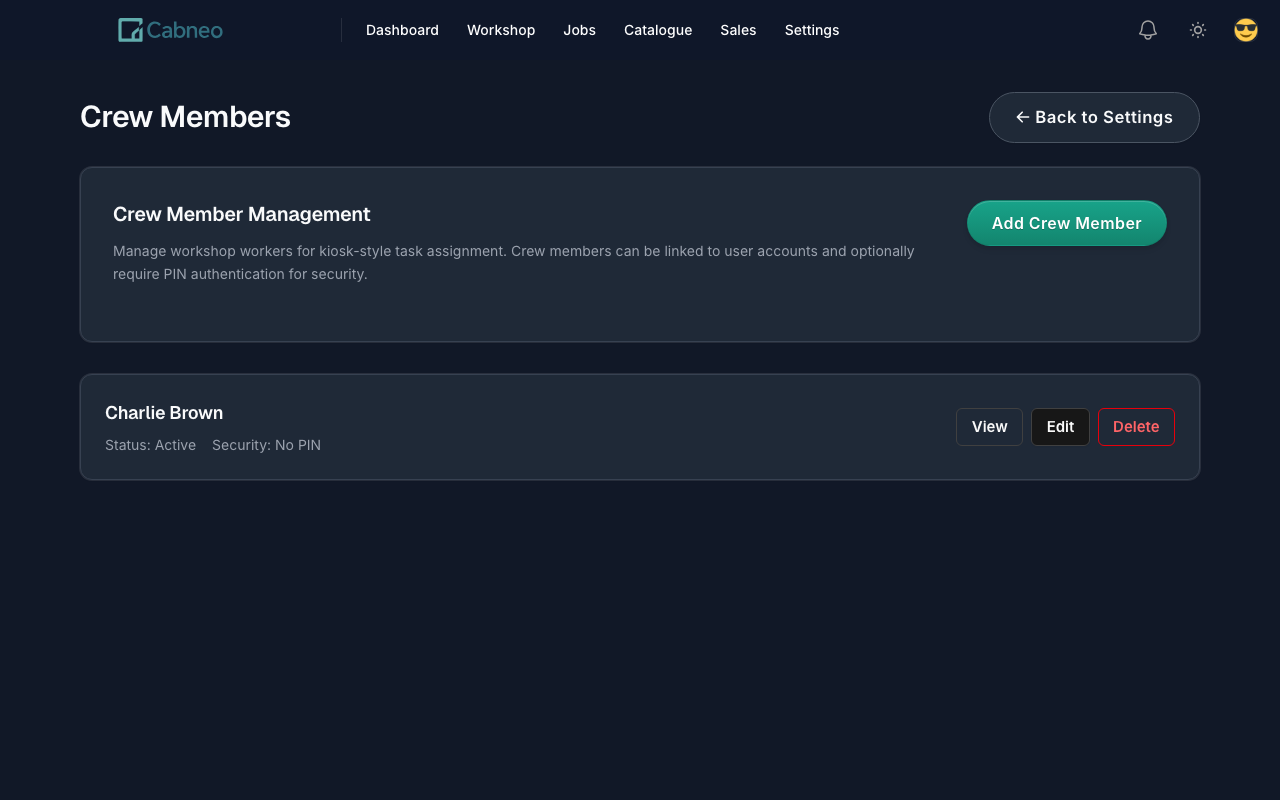
From your personal account, open Business Settings -> Users & Access -> Crew Members. Create one crew member for each person who will record workshop activity. Crew members do not need personal Cabneo accounts to use the shared kiosk.
Sign in the shared device
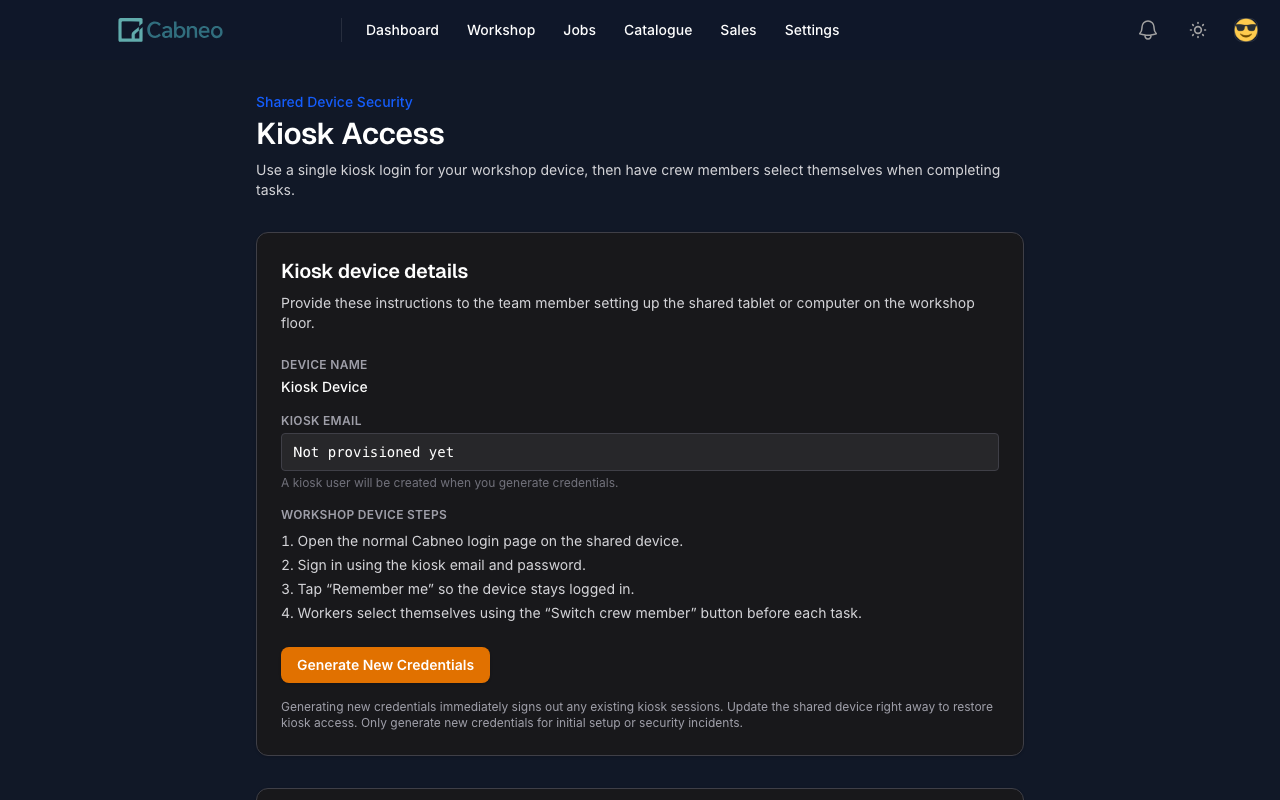
This is the step shops most often miss. Adding crew records does not put Cabneo on the floor: the physical tablet or computer must be signed in with its dedicated Kiosk login.
Text version of this video
An admin opens Business Settings, then Users & Access.
- Adds the workshop crew members — they do not need personal Cabneo accounts.
Opens Kiosk Access and generates the shared-device password.
- Signs the workshop device into Cabneo once, using the Kiosk login and password.
- From then on, workers choose their own identity on that shared device.
- Open Business Settings -> Users & Access -> Kiosk Access.
- Generate a new device password.
- Copy the Kiosk login and password. The generated password remains available in the admin session for 15 minutes; if it is dismissed or expires, generate a new one.
- On the shared tablet or computer, open Cabneo's normal sign-in page.
- Sign in with the Kiosk login and password, not an admin or foreman account.
- Select Remember me so the device stays signed in between shifts.
- Leave the device on the floor where crew can reach it.
Check that it worked
The shared device should finish on the crew picker, ready for a worker to choose their name. Back in Kiosk Access, the device status should no longer read Never signed in on a device.
If the device has never signed in, workers cannot start or finish tasks from the workshop.
Next: use the kiosk
The device stays signed in while the person using it changes. Crew select themselves before recording work; admins and foremen review the result from their own accounts.
Continue with Use the Workshop Kiosk.